Region actions (context menu)
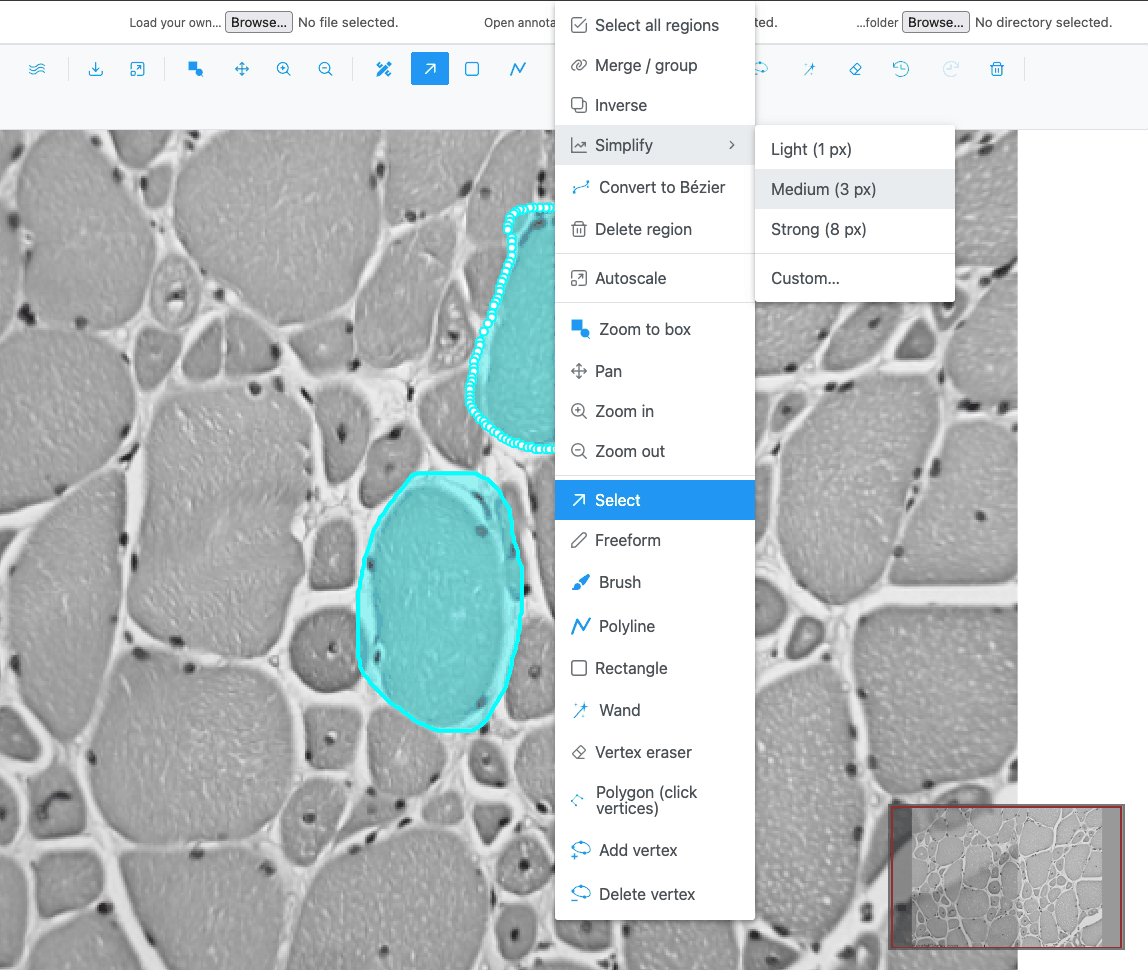
Region actions act at once on the selected regions. They are not drawing modes. Right-click the image to open them at the top of the context menu.
Note
Right-clicking does not select the region under the pointer: the actions apply to the current selection. Select the regions first (click, Shift-click or a rubber band in Selection mode).
| Action | Icon | Shown when | What it does |
|---|---|---|---|
| Select all regions | The image has regions | Selects every region (intensity lines excluded). | |
| Merge / group | 2 or more closed regions selected | Combines them into one region. If they do not touch, the result is one multi-part region. | |
| Ungroup | A multi-part region is selected | Splits it into one region per part. | |
| Inverse | 1 or more closed regions selected | Replaces the selection with everything outside it: the image rectangle, with the selected regions as holes. | |
| Simplify | Regions selected | Reduces the number of vertices. Submenu: Light (1 px), Medium (3 px), Strong (8 px), Custom… | |
| Convert to Bézier |  |
Image view; a polygon or rectangle selected | Turns it into a smooth curve with handles. |
| Convert to polygon |  |
Image view; a Bézier region selected | Turns it back into a straight-edged polygon. |
| Delete region | Regions selected | Deletes the selected regions. |
Each action is one undo step, and its result is selected afterwards.
Merge / group
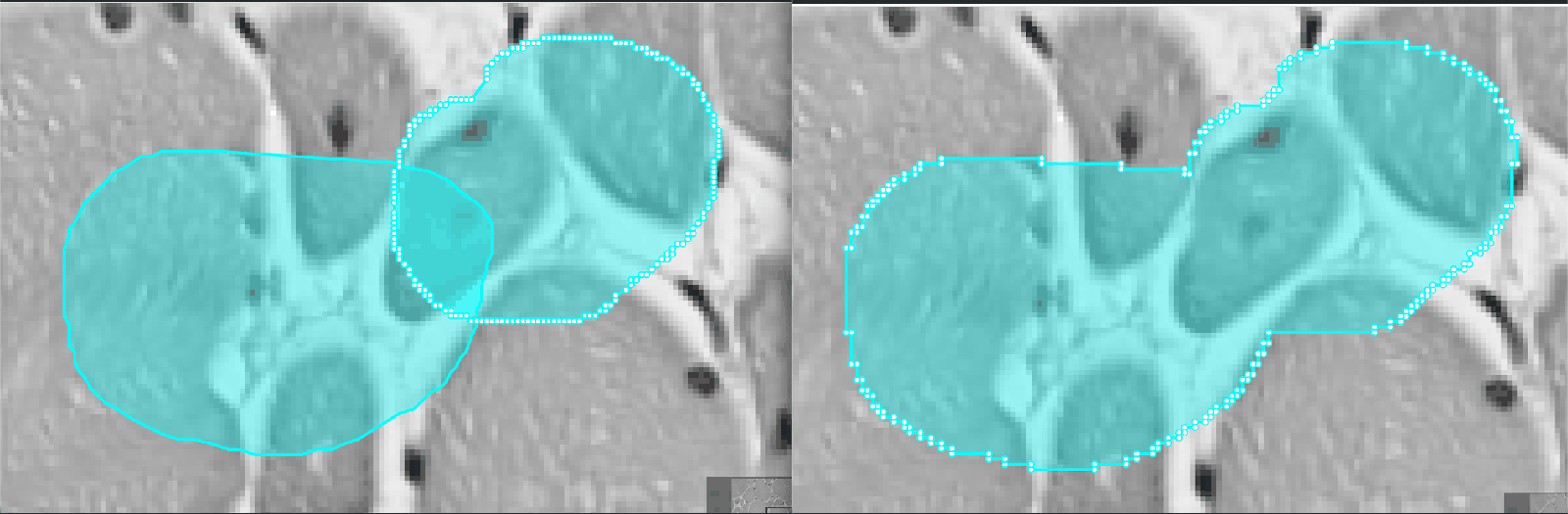
- Works on closed regions: rectangles, polygons and multi-part regions. Polylines are ignored.
- The merged region keeps the class and colour of the first selected region.
- Holes are kept, and overlapping areas are counted once.
- Very large selections (more than 16 megapixels across) are merged at reduced resolution, so their edge is slightly less exact.
Inverse
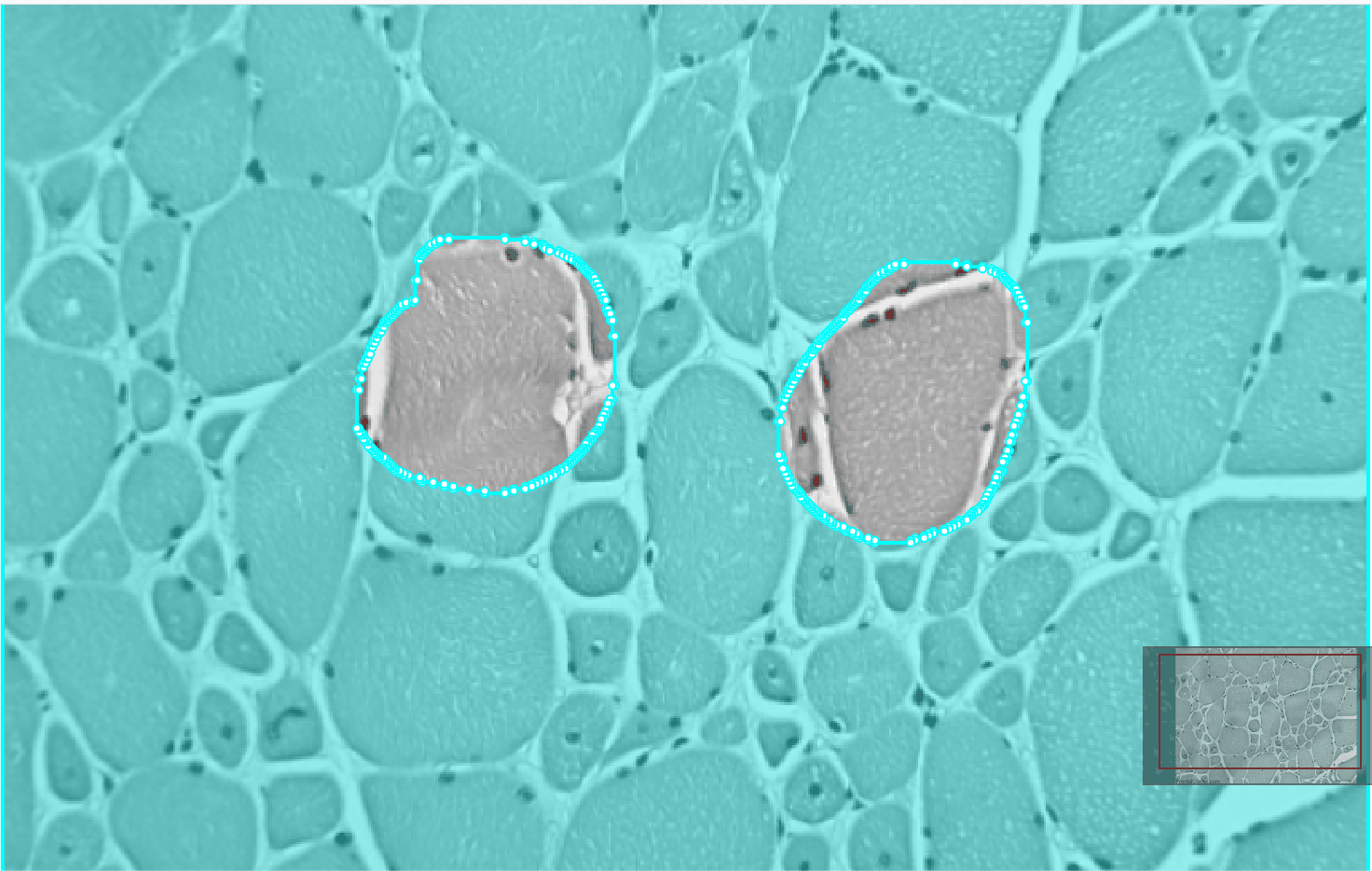
The result is the whole image with each selected area cut out as a hole. A selected region's own holes become solid islands in the result. It works at any image size. If no closed region is selected, a warning says "Nothing to invert — select one or more closed regions first."
Simplify
Simplify removes vertices that lie within a distance (in pixels) of the line between their neighbours, using the Douglas–Peucker method. It applies to the outline, the holes and every part of a multi-part region.
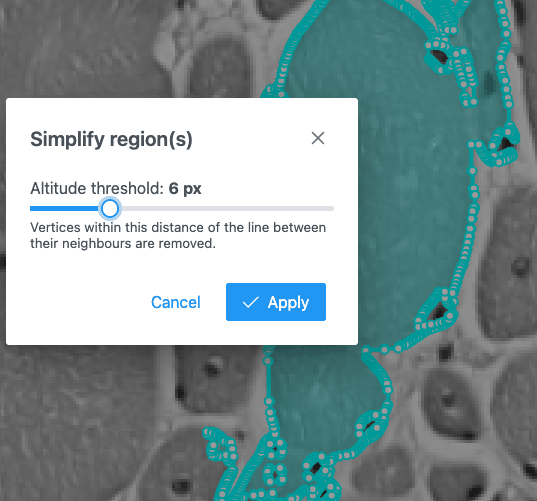
Custom… opens the Simplify region(s) dialog with an Altitude threshold slider, 1–20 px (default 3). Click Apply.
- An outline that would drop below 3 vertices keeps its original points.
- Rectangles and polylines are not changed.
- Simplifying a Bézier region turns it into a plain polygon.
Use Simplify on wand, brush or AI regions with thousands of vertices to make them lighter to edit and export.